
This guide shows how to create product photos with AI 2026: good product photos sell products, and getting them no longer requires a studio, a photographer, or an expensive camera — AI tools can remove backgrounds, build lifestyle scenes, fix lighting, and upscale images in minutes, for a few dollars a month.
AI now handles the repetitive 80% of product photography. You spend money only on the shots that genuinely need a real camera. This guide covers the workflow, from choosing the right tool to exporting listing-ready images for Shopify, Etsy, and Amazon.
Table of Contents
What You Need Before You Start
- A phone camera. Modern phones are good enough for base photos. Shoot in natural light near a window.
- A clean surface. A white poster board or plain counter works. The AI replaces the background anyway.
- One AI editing tool. For most sellers, PhotoRoom is the fastest start. For generated scenes, try Adobe Firefly or Ideogram.
- A style reference. Pick 3–5 listing photos you admire and note the background, shadow, angle, and crop.
- Your marketplace rules. Amazon, Etsy, and Shopify have different image requirements. Know them before you export (Step 6).
Step-by-Step: How to Create Product Photos with AI 2026
Step 1. Pick Your Tool for the Job
General generators dream up great scenes but struggle to keep your product looking like itself. Choose by task:
- Background removal and fast listing shots: PhotoRoom — background removal, AI backgrounds, batch editing, Shopify integration on higher plans. Pro starts at $12.99/month ($7.50/month billed yearly).
- Commercial-safe scenes: Adobe Firefly — its own models are trained on licensed and public-domain content. Standard starts at $9.99/month.
- Text on packaging: Ideogram — the strongest at rendering readable text inside images. Plus starts at $20/month ($15/month billed yearly).
- High-volume generation: Flux (Black Forest Labs) — pay per image, no subscription, from about $0.014 to about $0.07 per image.
- Brand-consistent graphics: Recraft — V4.1 models generate images and editable vectors with custom styles. Basic starts at $12/month ($10/month billed yearly).
Compare options in our best AI image generators guide, or our Flux vs Ideogram head-to-head. Start with one tool: PhotoRoom alone covers most sellers.
Step 2. Shoot or Gather Your Base Photos
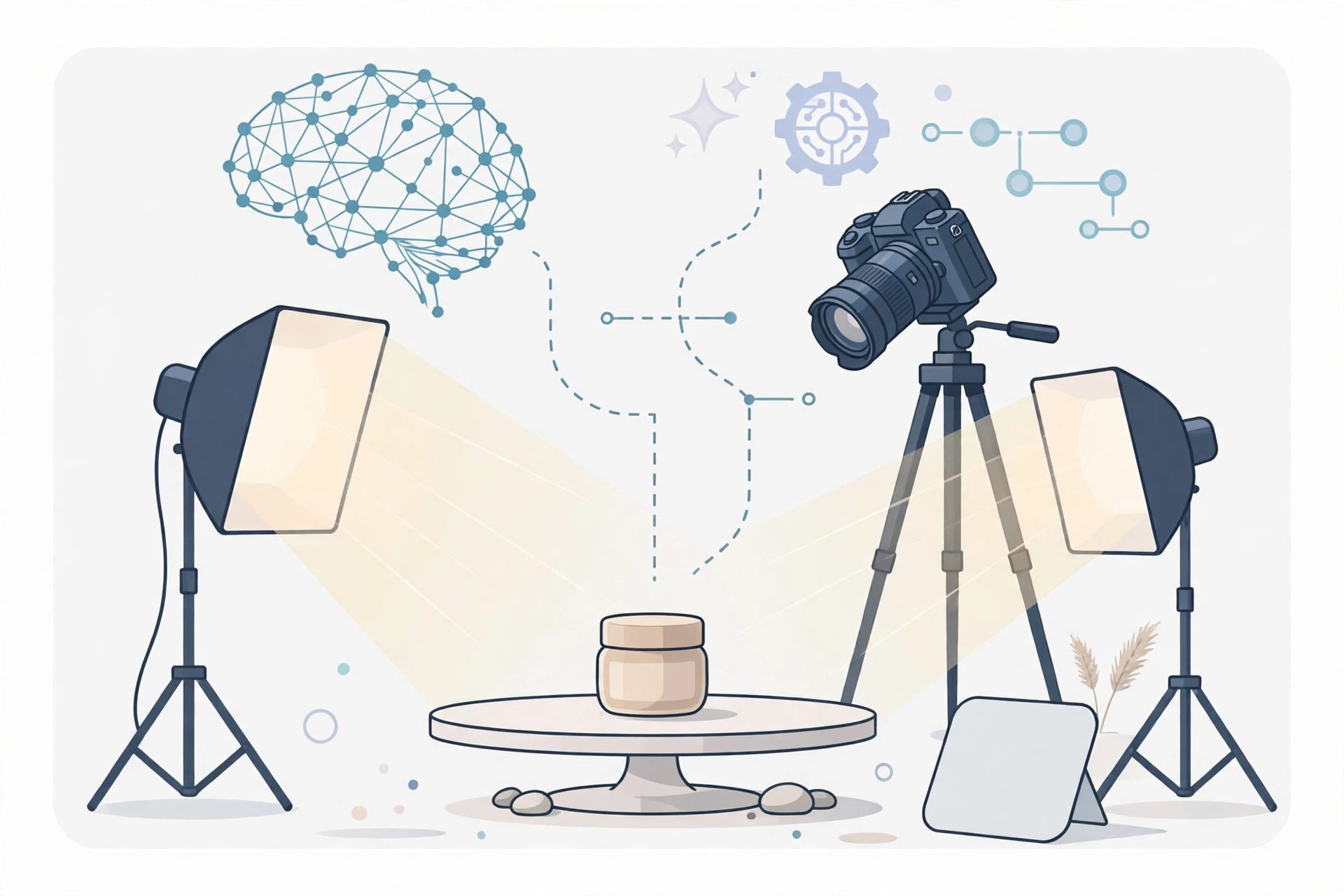
- Use natural light. Shoot near a large window in the daytime. Avoid your phone’s flash — it creates harsh shadows.
- Shoot straight and level — front-on for most items, a slight three-quarter angle for bags and bottles.
- Fill the frame. Amazon wants the product to fill roughly 85% of the main image. Get close; you can crop out later.
- Take more angles than you need — front, back, side, detail close-up, in-use shot. AI can restyle a photo, but it cannot invent an angle you never shot.
- Keep the originals. If a marketplace flags an AI image, the unedited photo proves what the product actually looks like.
No product yet? Generate a base image with Firefly or Flux — but remember, a generated image is a mockup, not a photo of the real item, and should never be presented as one on a listing.
Step 3. Generate or Enhance the Base Shot
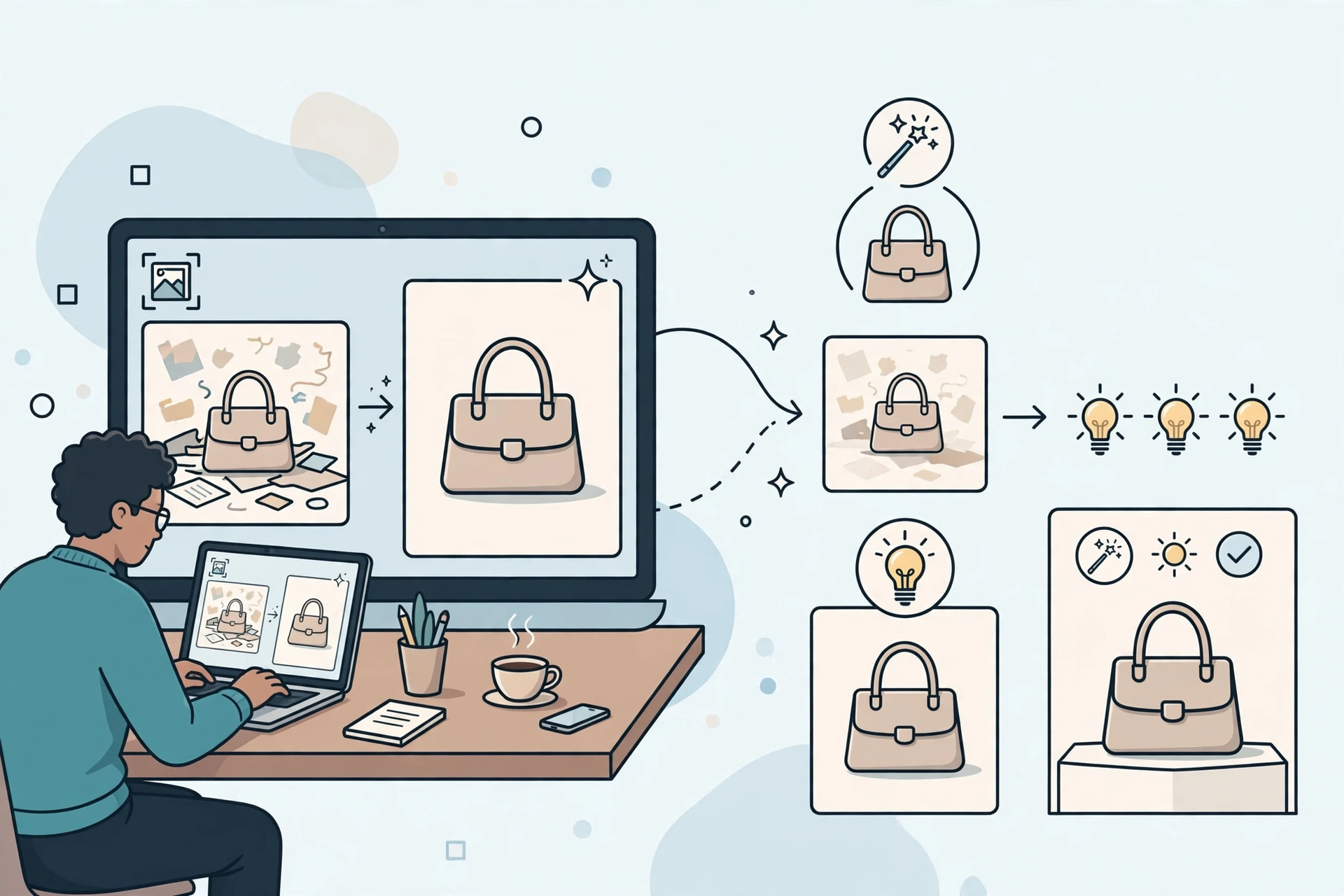
- Enhance when the product exists. Upload your real photo and let the tool clean it up: remove dust, sharpen edges, even out lighting. PhotoRoom’s AI Product Fixer does this in one tap, and its core tools cost no AI credits on paid plans.
- Generate when you need a scene. Use text-to-image with your product photo as a reference. Name the product, setting, lighting, and mood: “matte black water bottle on a wooden table by a sunny window, soft morning light.” Generate four variations and pick the best.
- Use reference images, not memory. Tools that accept an image reference (Firefly, Ideogram, Flux, Recraft) keep your product’s shape and colors far more accurate than a text-only prompt.
Check the result against the real product first: color, logo spelling, proportions. Fix errors now — they get harder to spot inside a finished listing.
Step 4. Backgrounds and Scenes
A plain white background is the safest main image; later images are where lifestyle scenes sell:
- Main image: pure white. Amazon requires a pure white background (RGB 255, 255, 255), with the product filling about 85% of the frame. Check the edges — thin straps, glass, and fur are where removal tools leave halos.
- Secondary images: lifestyle scenes. Generate a kitchen counter, desk, or cozy bedroom behind your product. Keep the product the focus — a background more interesting than the product is too busy.
- One scene style per product line. A candle on marble in one photo and on a beach in the next makes the listing feel random. Pick one scene family and use it across the catalog.
- Watch the shadows. A product floating with no shadow looks fake instantly. Most tools add one automatically; if yours does not, add a soft contact shadow before exporting.
Step 5. The Consistency Pass
Consistency separates a professional-looking store from a thrown-together one:
- Lock your template. Same aspect ratio, background, margin, and shadow style for every image. Save the settings as a preset.
- Fix color across the set. Open images side by side and adjust white balance until the same product matches. Color mismatch is a common reason for returns.
- Check text and logos on every image. AI still garbles text, especially small print and curved labels. Our Ideogram review explains why it is the best option when readable text matters — but even Ideogram needs a human check on every render.
- Batch process, then spot-check. PhotoRoom and Recraft support batch editing. Batch first, then manually review at least 20% of the outputs.
- Keep a style sheet. One short document per store: background color codes, fonts, aspect ratios, export settings. Ten minutes to write, hours saved later.
Step 6. Export for Your Store
Export per channel:
- Amazon: JPEG recommended, at least 1,000 pixels on the longest side so zoom activates (2,000 x 2,000 is the practical standard), pure white main image, product filling about 85% of the frame. No WebP.
- Etsy: At least 2,000 pixels wide and tall is recommended, minimum 635 x 635 for the first photo. Etsy requires original photos of the actual item, not renderings — keep at least one unedited real photo in the listing.
- Shopify: 2,048 x 2,048 pixels for square product images is the recommended size, with a 20 MB per-file limit and up to 5,000 x 5,000 pixels. Shopify accepts WebP and HEIC.
- General rule: Export at 2,000–2,048 pixels square in JPEG, keep files under 5 MB, and archive a high-resolution master (PNG, 2,048 pixels or larger) per product.
Before uploading, zoom-check at 100% for warped text, extra handles, and mismatched shadows. AI artifacts hide at thumbnail size and show up at full size.
Pro Tips for Better AI Product Photos
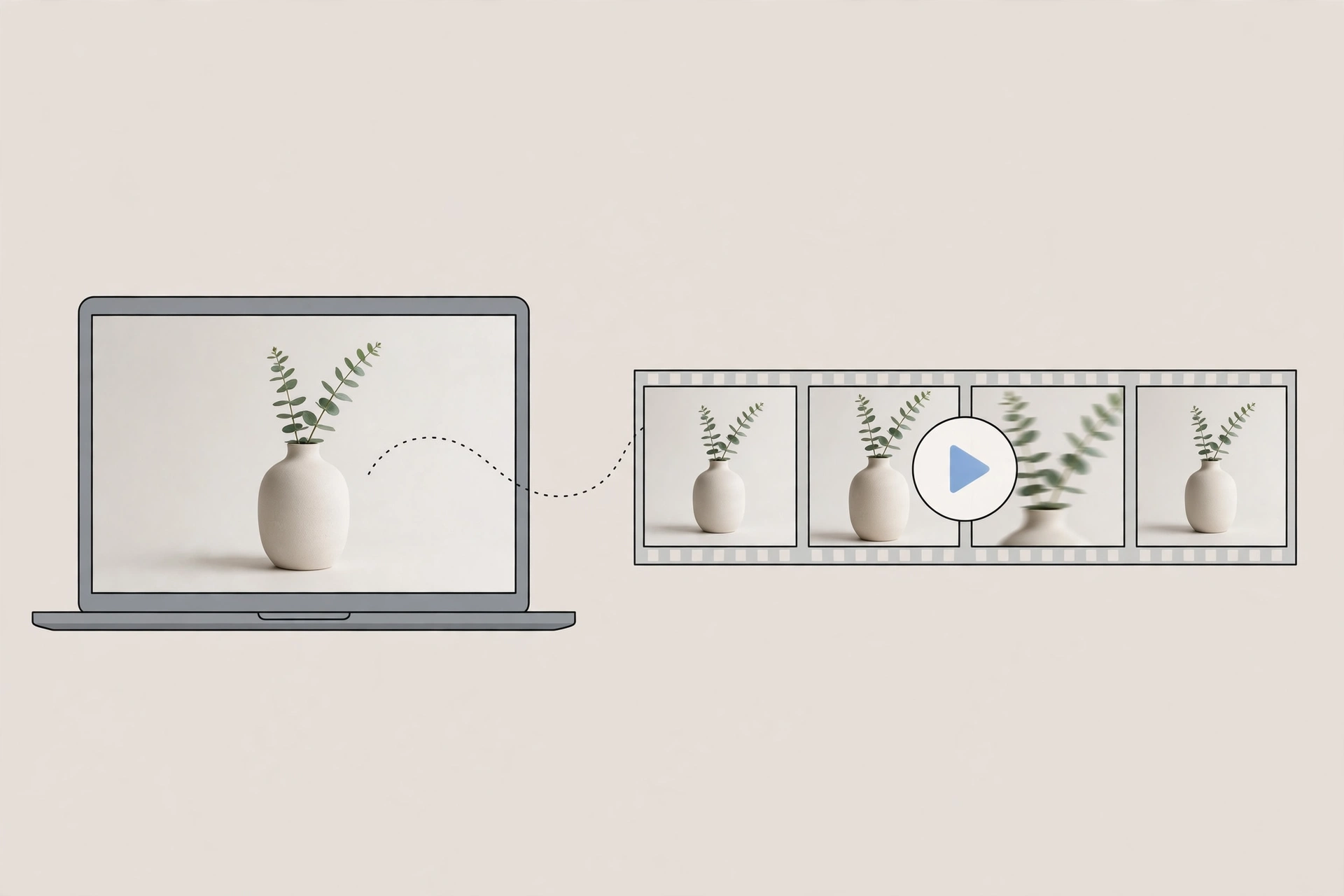
- Photograph once, generate many. One good base photo can produce a white-background main image, three lifestyle scenes, and a social crop. The base photo is the asset.
- Use AI for scale, not for deception. Enhancing lighting and swapping backgrounds is standard practice. Changing the product’s color, shape, or material is not — that is how you get returns and bad reviews.
- Mind the license. Free plans are often personal-use only: PhotoRoom’s free plan is restricted to non-commercial use, and Recraft’s free-plan images are public with no commercial rights. Firefly’s models are trained on licensed content and cleared for commercial use.
Common Mistakes to Avoid
- Trusting the first generation. AI gets it wrong often enough that every image needs a human look. Check hands, text, logos, and proportions on every output.
- Mixing styles across a catalog. Five different background styles in one store looks like five different sellers. Pick one look and repeat it.
- Over-smoothing the product. Aggressive enhancement erases texture — fabric weave, wood grain, leather creases — that customers use to judge quality.
- Using fully AI-generated images as the only listing photos on Etsy. Etsy asks for original photos of the actual item. A listing with nothing but renders risks removal and misleads buyers.
- Skipping the real photoshoot entirely. AI is excellent for catalog shots, but not a replacement for a real photoshoot when the product is worn on a body or when fit and material texture are the selling point. Our Midjourney review and Flux review make the same point: generated images still struggle with hands, fabric drape, and exact product fidelity.
Frequently Asked Questions
Can I use AI product photos on Amazon?
Yes, if the images meet Amazon’s rules: pure white main-image background, the product filling about 85% of the frame, and at least 500 pixels on the longest side (1,000 or more to enable zoom). AI-enhanced photos of your real product are fine; a fully generated image that does not accurately show the product is not.
Do I still need a photographer?
For most catalog and listing work, no — a phone plus an AI tool covers it. You still need a real photoshoot for on-model fashion, fit and scale, and hero campaigns where material texture is the selling point. AI replaces the studio, not the photographer.
Which AI tool is best for product photos?
For most small sellers, PhotoRoom — background removal, AI backgrounds, and batch editing from $7.50/month billed yearly. Add Adobe Firefly ($9.99/month) for commercial-safe scenes, or Ideogram ($20/month) when readable text on packaging matters.
How much do AI product photos cost?
Very little: $8–$20 a month for one tool — PhotoRoom Pro at $7.50/month billed yearly, Firefly Standard at $9.99/month, Recraft Basic at $10/month billed yearly, or pay-per-image with Flux from about $0.014 per image. A traditional photoshoot can cost hundreds of dollars per product.
Will customers be able to tell the photos are AI-made?
Usually not, if the workflow is done well — a real base photo with an AI-swapped background looks like a studio shot. Fully generated images are easier to spot, especially in hands, text, and fine details. If a customer would feel misled by the photo next to the real product, the photo is wrong.
Verdict: How to Create Product Photos with AI 2026
AI product photography in 2026 is the default workflow for small sellers — and this guide to how to create product photos with AI 2026 shows why: a phone, one good tool, and a consistent template produce listing images that would have cost hundreds of dollars per product a few years ago. PhotoRoom is the fastest starting point, Firefly is the safest for commercial use, Ideogram wins when packaging text must be readable, and Flux is the cheapest way to generate at volume.
The honest limit is fidelity: AI is brilliant at backgrounds, lighting, and consistency, and still unreliable at hands, small text, and exact product details. Use real base photos, check every output at full size, keep at least one true photo of the actual item in every listing, and book a real photoshoot where the product’s physical reality is the point. Do that, and AI photos will save you real money without costing you trust.