
Your feed is a battlefield. Every scroll is a split-second decision — thumb up, thumb down, keep going — and the average social graphic gets about one second to earn a stop. The good news: you no longer need a design degree or a Photoshop subscription to win that second. With the right AI workflow, anyone can design scroll-stopping social graphics in under 15 minutes — and this guide shows you exactly how, step by step. Overall rating: 4.5/5.
In this guide, you will build a complete social graphic from scratch: pick the right format, generate a striking visual with AI, add text that earns the stop, brand it in seconds, and test it before you post. The workflow uses five tools — Canva, Adobe Express, Krea, Recraft, and Predis.ai — and every price quoted below was verified in November 2026. For the bigger picture of AI design tools, start with our guide to the best AI design tools of 2026.

Step 1: Pick the Right Format Before You Design Anything
A graphic that stops the scroll on Instagram will look lost on LinkedIn. Format is the first decision, not an afterthought, because every platform crops, compresses, and displays images differently.
Start with these proven sizes: 1080 × 1350 px (4:5 portrait) for Instagram feed posts — it takes up more screen height than a square and earns more dwell time; 1080 × 1920 px (9:16) for Stories, Reels covers, and TikTok; 1200 × 627 px (1.91:1) for LinkedIn and X link posts; and 1080 × 1080 px square when you need one asset that works everywhere. Both Canva and Adobe Express ship with these sizes as one-click presets, so you never have to memorize dimensions.
Pick one primary format per graphic. If you need the same design on several platforms, design for the biggest format first, then resize — Canva’s Magic Resize (a Pro feature) and Adobe Express’s one-click resize (a Premium feature) reflow your layout automatically instead of just cropping it.
Step 2: Generate the Visual with AI
The visual is what stops the thumb. You have two routes: generate a custom image, or start from a template and make it yours. For originality, generation wins — nobody else in your feed will have the same image.
Krea is the strongest pick when you want a distinctive, high-quality hero image. Its Krea 3 model edits images in seconds and its real-time generation lets you sketch an idea and watch it render live. The free plan gives you 100 compute units a day with no credit card required — enough for roughly a handful of images — but note that Krea’s free plan carries no commercial license, so upgrade to Basic ($9/month, or $5.25/month billed yearly) before using generated images in client or business posts.
Adobe Express is the better choice when you want the image and the layout in one place. Its Firefly-powered text-to-image tool generates commercially safe images — Firefly is trained on licensed content — and the free plan includes limited free daily generations of Firefly features. Premium costs $9.99/month and adds 250 generative credits a month, brand kits, and 100 GB of storage.
Recraft earns its place when your graphic needs illustration, icons, or a logo rather than a photo. It is one of the few AI generators that outputs genuine editable vector (SVG) graphics, so your icons stay crisp at any size. The free plan offers limited daily credits (3 generations per style per day), but free-plan images are public and cannot be used commercially — commercial rights start at Basic, $12/month or $10/month billed yearly.
Prompt tip: describe the subject, the mood, the lighting, and the empty space in one sentence. For example: “Bold flat illustration of a sunrise over a city skyline, warm orange and teal palette, clean minimal style, large empty sky area at the top for headline text.” That last clause — reserving space for text — is what separates usable graphics from pretty pictures you cannot write on.
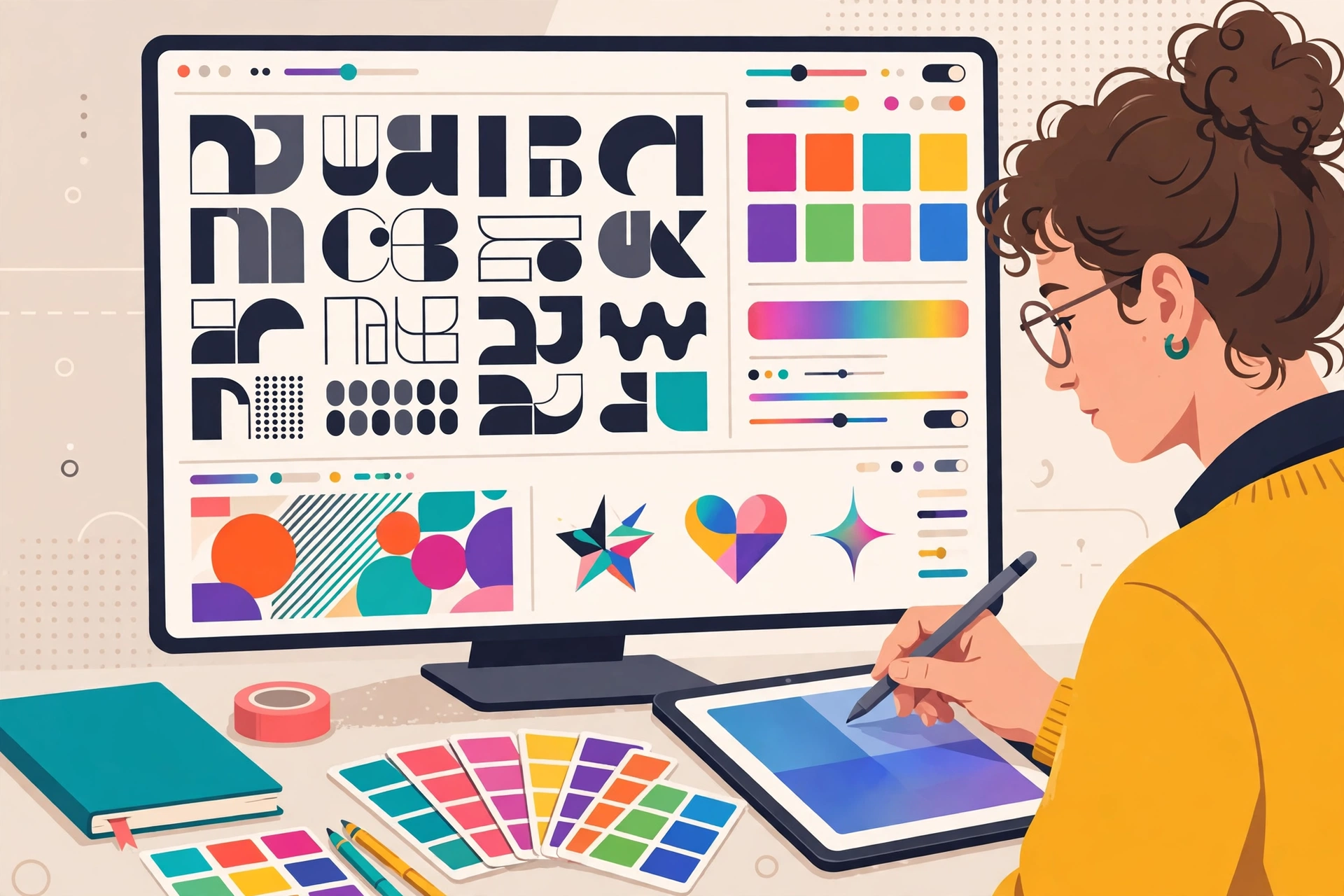
Step 3: Add Text That Earns the Stop
A great image gets the glance; the words get the stop. Social graphics fail most often here — too many words, too small, or a headline that says nothing.
Follow the three-word rule: your headline should be readable in under two seconds, which usually means three to six words. Put the benefit first (“Save 10 Hours a Week”, not “Our New Productivity Feature”). Use one font for the headline and one for the subtext, and keep contrast brutal — dark text on light areas, light text on dark areas, never mid-grey on mid-grey.
Canva’s Magic Write can draft headline options inside the editor, and its Magic Design feature can generate whole layout variations from a prompt — genuinely useful when you are staring at a blank canvas. Adobe Express’s AI Assistant (still in beta) takes a sentence and returns complete design options. If you want the copy, the visual, and the caption written for you in one pass, Predis.ai turns a text prompt, product link, or image into finished posts, carousels, and short videos with captions and hashtags. Note that Predis.ai has no free plan as of November 2026 — every plan starts with a 3-day trial that requires a card, and the Core plan costs $32/month (or $19/month billed yearly).
Step 4: Brand It in Seconds
Consistency is what turns one good graphic into a recognizable feed. A brand kit — your logo, your colors, your fonts, saved once and applied everywhere — is the single biggest time-saver in this workflow.
In Canva, Brand Kit is a Pro feature ($144/year, or $18/month). In Adobe Express, brand kits come with Premium at $9.99/month, making it the cheaper route to consistent branding. Set up your kit once: upload your logo, save your two brand fonts and your three core colors, and every new graphic starts on-brand instead of starting from zero.
Two practical rules: keep your logo small and in the same corner every time (bottom-right is the convention), and limit yourself to three colors per graphic. If your brand colors clash with the AI image you generated, use the image as a background at reduced opacity, or place your text on a solid color block pulled from the image itself.
Step 5: Test and Iterate Before You Post
Never publish your first draft. Export the graphic, open it on your phone, and look at it the way your audience will: small, fast, and surrounded by competing posts.
Run this 30-second check: can you read the headline at arm’s length? Does the image still make sense when the graphic is thumbnail-sized? Is there one clear focal point, or three things fighting for attention? If anything fails, fix that one thing and re-check. Small iterations beat redesigns — a bolder headline, a tighter crop, or a higher-contrast background usually does the job.
For ongoing improvement, keep a simple swipe file of your best-performing posts and note what they share: a color, a layout, a headline style. Then use Predis.ai‘s competitor analysis (60 runs a month on the Core plan) to see which formats are working for accounts in your niche — and borrow the format, never the artwork.
The Tools at a Glance
| Tool | Best for | Starts at | Free tier |
|---|---|---|---|
| Canva | All-in-one design, templates, one-click resize | $0 (Pro $144/year) | Yes — free plan with a limited monthly AI allowance (up to 20 Premium AI uses) |
| Adobe Express | Firefly AI images, brand kits, Adobe Fonts | $0 (Premium $9.99/month) | Yes — free daily Firefly generations (exact count not published) |
| Krea | Custom AI visuals, real-time generation, Krea 3 edits | $0 (Basic $9/month) | Yes — 100 compute units a day, personal use only (no commercial license) |
| Recraft | Vector illustrations, icons, logos, mockups | $0 (Basic $12/month) | Yes — limited daily credits; images are public, no commercial use |
| Predis.ai | Full posts, carousels, video, captions, scheduling | $32/month ($19/month billed yearly) | No — 3-day trial only, card required |
Prices in this article were verified in November 2026 against the vendors’ official pricing pages and independent checks of those pages. Prices and free-tier limits change — check the official pricing page before you buy. For a deeper look at each tool, see our Canva review, our Adobe Express review, and our guide to the best AI design tools for social media.
Frequently Asked Questions
Can I design scroll-stopping social graphics for free?
Yes. Canva, Adobe Express, Krea, and Recraft all offer free plans that cover the full workflow in this guide. The main limits are AI usage allowances and commercial licenses: Krea and Recraft free-plan images cannot be used commercially, so upgrade to a paid plan before using generated images in business posts.
Which AI tool is best for social media graphics?
It depends on the job. Canva is the best all-rounder for templates, text, and resizing. Adobe Express wins on Firefly image quality and cheap brand kits. Krea is best for original AI visuals, Recraft for vectors and logos, and Predis.ai for generating complete posts with captions and scheduling.
What size should my social media graphics be?
Use 1080 × 1350 px (4:5 portrait) for Instagram feed posts, 1080 × 1920 px (9:16) for Stories and Reels covers, 1200 × 627 px for LinkedIn and X, and 1080 × 1080 px square for a universal fallback. Design for the largest format first, then resize.
Are AI-generated images safe to use commercially?
It depends on the tool and the plan. Adobe Firefly images are trained on licensed content and designed to be commercially safe. Krea and Recraft grant commercial rights only on paid plans — their free plans are personal use only. Always check the license terms on the plan you are actually using.
How long does it take to design a social graphic with AI?
Once your brand kit is set up, a single graphic takes 10–15 minutes: two minutes to pick the format, five to generate and refine the visual, three to write and place the text, and a few minutes to brand and test it. Batching a week’s worth of graphics in one sitting is the fastest way to stay consistent.

Verdict
You do not need design skills to make graphics that stop the scroll — you need a repeatable workflow and the right tool for each step. Start free with Canva for layout and Krea for original visuals, add Adobe Express Premium ($9.99/month) when you want Firefly images and brand kits, and bring in Predis.ai when you are ready to generate and schedule posts at volume. Keep your headlines short, your branding consistent, and test every graphic on your phone before it goes live. Overall rating: 4.5/5 — a fast, cheap workflow that turns a blank canvas into a scroll-stopping graphic in about 15 minutes.
Affiliate Disclosure: This article contains no affiliate links. Links go to the official sites of the tools mentioned, and we earn nothing if you buy through them.