
Learning how to repurpose one video into 10 social posts with AI is the highest-leverage skill a creator can build in 2026: one long recording becomes a week of content across every platform, without filming anything twice. This guide shows the exact workflow — pick the right source video, cut it with an AI clipper, then turn the transcript and best moments into ten different posts. Tool prices were checked in November 2026, and the free tiers below are enough to test the whole system before you pay.
Table of Contents
How to Repurpose One Video into 10 Social Posts with AI: The 10 Outputs
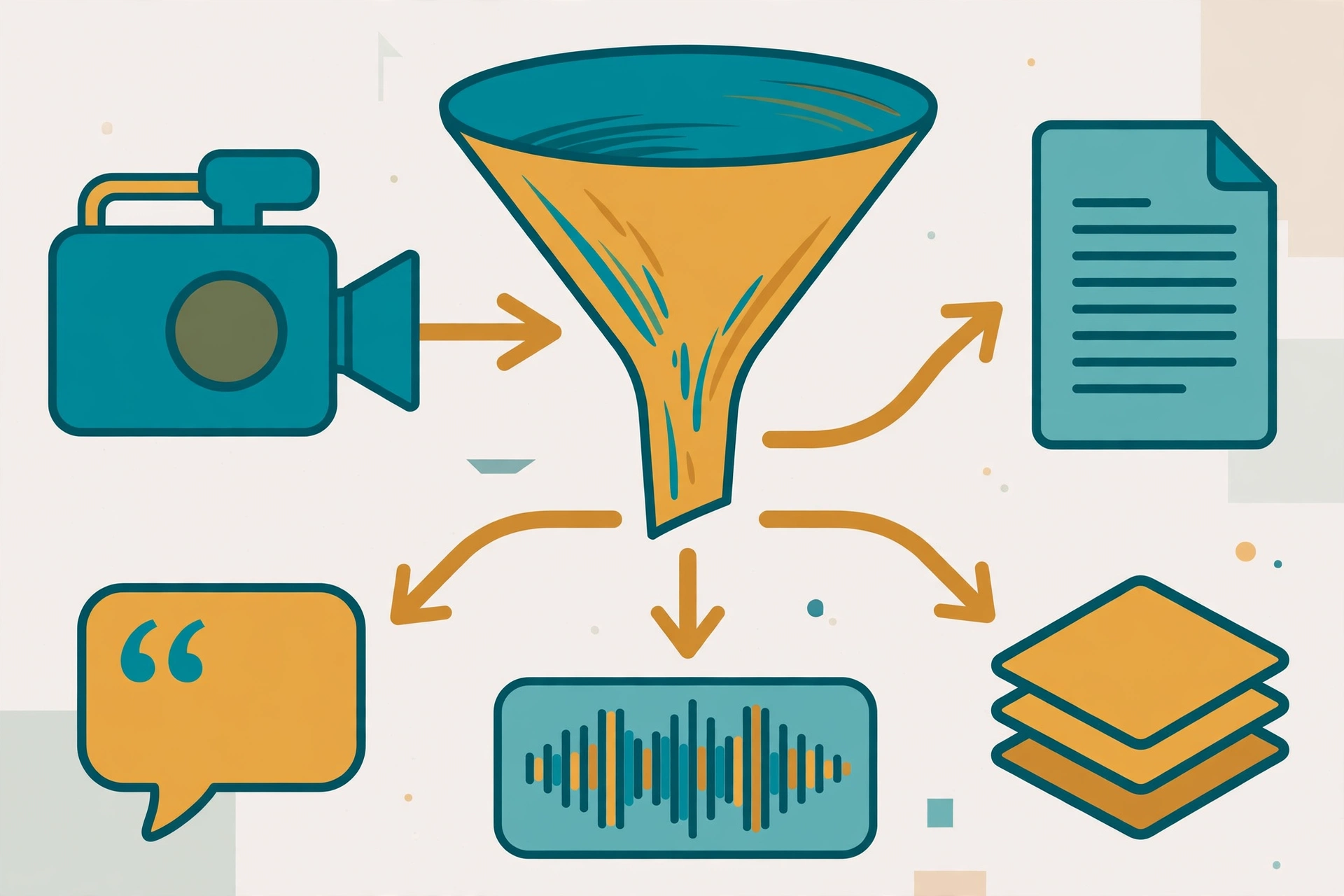
Start with one 20–60 minute recording — a podcast episode, webinar, tutorial, or livestream. From it you can make ten posts that feel native on each platform instead of ten copies of the same clip:
- Three short clips — the three strongest moments, cut vertical with captions, for TikTok, Reels, and Shorts.
- One teaser clip — a 15-second hook that points back to the full video.
- One carousel post — five slides built from the video’s key points, for Instagram and LinkedIn.
- One quote graphic — the single most quotable line, designed as a static image.
- One blog post or LinkedIn article — the transcript edited into a readable article.
- One newsletter section — the best insight plus a link to watch the full video.
- One audiogram — the audio of the best moment over a waveform graphic, for X and LinkedIn.
- One X thread — five to seven posts summarising the video’s argument.
- One Pinterest pin — a vertical graphic with the video’s title and one takeaway.
- One behind-the-scenes clip — a blooper, outtake, or setup shot that humanises the creator.
Step 1: Pick a Source Video Worth Clipping
Not every video repurposes well. The best sources have clear spoken points, natural pauses, and at least three moments that stand alone without context — a strong opinion, a surprising number, or a step-by-step answer. Talking-head podcasts, webinars, and tutorials work best. Vlogs and silent footage do not, because the clipper has no transcript to score. Before you upload anything, write down the three moments you already remember from the recording: if you cannot name three, record a better source first.
Step 2: Cut Clips with an AI Clipper
Upload the source to an AI clipper and let it find the moments. OpusClip is the most polished option: its free plan gives 60 credits a month with clips rendered up to 1080p, a watermark, and exports that expire after 3 days; Starter costs $15 a month and Pro $29 a month, or $14.50 on annual billing. Vizard is the best budget alternative: also 60 free credits a month, with Creator at $29 a month or $14.50 on annual billing, and it accepts uploads up to 600 minutes on paid plans. Both charge one credit per minute of source video, so a 60-minute episode costs 60 credits whether it yields two clips or twenty.
Score the clips the tool returns by virality score, then keep three and delete the rest. Add captions — both tools generate them automatically — and check the auto-reframe keeps the speaker’s face in frame before you export. A clip that crops out the speaker’s eyes will underperform no matter how good the quote is.
Step 3: Turn the Transcript into Text Posts
Export the transcript and mine it for the text posts. Descript turns the transcript into an editable document where deleting a sentence deletes the matching video, which makes cutting the blog post and newsletter section fast. Kapwing and CapCut both offer free tiers for the same job if you prefer a simpler editor. Pull the three strongest sentences for the quote graphic, then expand the video’s argument into a five-post X thread and a LinkedIn article. The rule for all of it: rewrite for the platform, do not paste the same caption everywhere — a thread is not a blog post cut into pieces.
Step 4: Design the Visual Posts
The carousel and the quote graphic need design, and this is where an AI content tool earns its keep. Predis.ai generates carousels, quote graphics, and captions from a prompt or a product link — its Core plan costs $32 a month, or $19 on annual billing, and works on a credit system, so check how many images your monthly output actually needs. Canva’s free tier is the fallback if you want full manual control. Keep one template for all ten outputs so the week’s posts look like a series, not ten random designs — and reuse that template next week instead of designing from scratch.

Step 5: Schedule Everything in One Sitting
Batch the publishing or the system falls apart. Load all ten posts into a scheduler in one sitting: Buffer’s free plan covers 3 channels and its AI Assistant can rewrite each caption for the platform it goes to, while Publer’s free plan covers 3 accounts and its bulk scheduling handles the whole batch at once. Stagger the posts across the week instead of dumping them in one day — the teaser goes first, the three clips spread across the week, and the blog post and newsletter land midweek when the clips have already warmed up the audience. Our best AI social media tools pillar compares the schedulers in detail.
How to Repurpose One Video into 10 Social Posts with AI Without Sounding Repetitive
The failure mode of this system is ten posts that all say the same thing. Avoid it with three rules: change the hook on every post, even when the point is the same; change the format, not just the caption — a carousel, a clip, and a thread are different experiences of one idea; and leave at least a day between posts that cover the same moment. The audience should feel like they are getting a series, not a rerun. For the video side of the workflow, our guide to viral short-form videos with AI covers hook structure, and our best AI video generators for YouTube roundup compares the tools that make the source video itself.
FAQ
How long should the source video be?
Twenty to sixty minutes is the sweet spot. Shorter than ten minutes and you will struggle to find three standalone moments; longer than an hour and the clipper burns credits without adding better moments.
Can I do this entirely on free plans?
Yes, for a test run. OpusClip and Vizard both give 60 free credits a month — about one hour of source video — and Buffer and Publer both have free scheduling tiers. The free clip exports carry a watermark and expire after a few days, so budget for a paid plan once the system becomes a weekly habit.
Do I need to show my face?
No. The same workflow works for faceless videos: voiceover, screen recordings, and slides all transcribe and clip the same way, as long as the audio carries clear spoken points.
How much time does one batch take?
About two to three hours once the system is set up: 30 minutes to pick moments and run the clipper, an hour to edit the text posts and design the visuals, and 30 minutes to schedule. The first batch takes longer; by the third week, the template and the routine cut it in half.
Verdict
Once you learn how to repurpose one video into 10 social posts with AI, the content calendar stops being a daily emergency and becomes a weekly batch job. One recording, one afternoon, ten posts — and every platform gets a version that feels made for it. Start with the free tiers, prove the system with one video, and only pay for a clipper when the second week feels as easy as the first.