
How to build a website with AI in under an hour is a realistic goal in 2026, not a marketing slogan. Modern AI website builders can turn a short description of your business into a complete first draft — pages, copy, images, and layout — in minutes. The rest of the hour is yours: checking the copy, adding real details, and pressing publish.
This guide uses the tools that do it best in 2026. No code, no designer — if you can describe your business in two or three sentences, you can ship a website today.
Table of Contents
What You Need Before You Start
Before you open any builder, gather four things: a one-sentence description of what you do and who it is for; your business name and contact details; three to five photos or a logo; and a domain name idea. The AI can generate images, but real photos build more trust.
Decide what the site must do: a portfolio needs strong visuals and a contact form, a service business needs bookings or a quote flow, and a shop needs product pages and checkout. Knowing the goal first stops the AI from building a pretty site that does the wrong job.
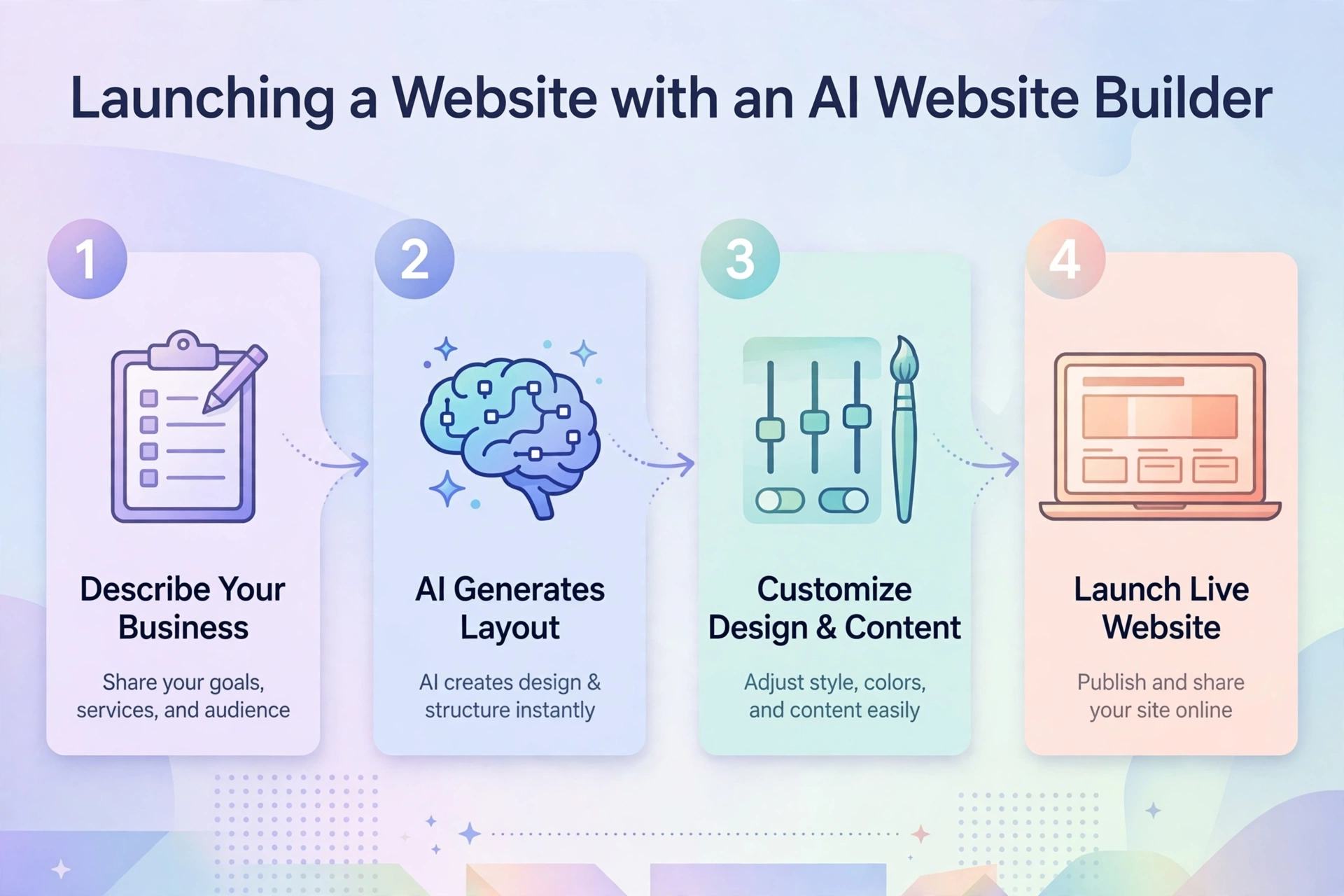
How to Build a Website with AI in Under an Hour: The 5-Step Process
Follow these five steps in order. Most people spend the longest on step three, customizing the draft, because that is where the site stops looking generic and starts looking like yours.
Step 1: Pick the Right AI Website Builder
All five builders below can generate a site from a prompt, but they suit different people. Compare them on price, ease of use, and what happens after launch — not just on the demo.
| Builder | AI feature | Starting price (2026) | Best for |
|---|---|---|---|
| Wix | Harmony with Aria AI agent | Free plan; paid plans from $17/month billed yearly | Small businesses wanting store, bookings, and marketing in one place |
| Framer | AI design agent on the canvas | Free plan; Basic from $10/month billed yearly | Design-led landing pages |
| Hostinger AI Builder | Prompt, PDF, screenshot, or link to site | From $2.49/month on a 48-month term; renews at $10.99/month | The tightest budget, hosting included |
| Durable | AI business builder, site in about 30 seconds | Free preview; Launch from $22/month billed yearly | Service businesses wanting a CRM and bookings |
| Squarespace | Blueprint AI guided setup | 14-day trial; Basic from $19/month billed yearly | Design-forward brands and portfolios |
Prices are US list prices from the vendors’ pricing pages in October 2026, and they change often — always confirm the current and renewal price at checkout. Hostinger’s low headline price requires a four-year prepayment and renews much higher, while Wix and Framer let you build and preview for free.
For the full comparison, start with our guide to the best AI website builders. For a closer look at the two most popular options, read our Wix review and Framer review. If budget matters most, our Hostinger review breaks down the real long-term cost, and our Durable review covers the fastest option for service businesses.
For most first-timers, Wix is the safest pick: its Harmony AI builder is included in every plan, and the Aria agent keeps editing by chat after the first draft. Framer wins on design quality, Durable wins if you want a CRM and bookings in the same subscription, and Squarespace suits design-forward brands.
Step 2: Generate the First Draft
Sign up for a free plan or trial, then answer the builder’s questions or type a prompt. A good prompt covers what the business does, who it serves, the tone you want, and the pages you need. For example: “A friendly Austin bakery serving custom birthday cakes. Warm tone. Pages: home, menu, gallery, and contact with an order form.”
Let the AI generate the full draft before you touch anything. Wix Harmony builds pages, copy, and images from your description, and Aria makes changes when you ask in plain English. Durable claims a first version in about 30 seconds, while Squarespace’s Blueprint AI returns a polished starter site from a short questionnaire.
Do not judge the draft on its first screen. Scroll through every page and check the business name, services, and contact details. AI copy sometimes invents services you do not offer or hours you never stated — fixing those facts is your job, not the AI’s.
Step 3: Customize the Design
Start with the three changes that matter most: your logo or business name in the header, your brand colours, and your real photos. Replace at least the hero image with a real photo of your work or product — AI images are fine for backgrounds, but the first thing visitors see should be real.
Next, check the layout on mobile. Open the mobile preview and look at the headline, the main button, and the contact section. Most visitors will arrive on a phone, and AI drafts sometimes stack sections awkwardly on small screens — move or resize anything that looks cramped.
Keep the design simple: one clear headline per page, one main button per section, and plenty of white space. If a section does not help a visitor decide to contact or buy from you, delete it.
Step 4: Add Your Real Content
Rewrite the AI copy in your own voice. Replace generic claims such as “we deliver excellence” with specifics: what you do, how long you have done it, and what makes you different. Add real prices or a “from $X” range — visitors trust sites that answer the price question.
Add the essentials: a short About section, a services or products list, testimonials if you have them, and a contact page with a form, email, and phone number. Connect your domain now — a custom domain is free for the first year on most annual plans.
Finally, add the search basics: a clear title for each page, a one-sentence description, and alt text describing each image. This takes five minutes. If you are still choosing between builders, our Wix vs Framer comparison and our Wix alternatives and Framer alternatives guides can help.
Step 5: Publish and Check the Live Site
Preview the site once more, then publish. Wix and Framer let you publish from the free plan, though the site carries their branding and a subdomain until you upgrade. Squarespace needs a paid plan after its 14-day trial, and Durable needs one to publish beyond a private preview.
After publishing, open the live site on your phone and a computer. Click every link, submit the contact form yourself, and check images load quickly. Ask a friend to visit and tell you, in ten seconds, what the business does and what to click next. If they cannot answer, your headline needs work.
Connect Google Search Console and submit your sitemap so search engines can find the new site. Then share the link where your customers already find you: social profiles, email signature, and Google Business Profile.

Common Mistakes to Avoid
The most common mistake is publishing AI copy without reading it. AI builders write confident, fluent text that can include wrong facts — invented services or wrong locations. Read every page out loud before you publish, and rewrite anything that could describe any business in your industry.
The second mistake is choosing on the headline price alone. Introductory prices on long contracts can more than quadruple at renewal, and the cheapest plan may lack a custom domain, payments, or bookings. Compare the renewal price and the plan with the features you need.
The third mistake is skipping the mobile check. AI drafts are usually designed desktop-first, and a headline that looks great on a laptop can wrap badly on a phone. Always preview on mobile before publishing.
Finally, do not try to finish everything in the first hour. Launch with home, services, about, and contact, and add a blog, gallery, or store later. A live, simple site beats a perfect site that never ships.
Frequently Asked Questions
Can I really learn how to build a website with ai in under an hour?
Yes, for a simple business site. The AI generates the first draft in minutes; the rest of the hour goes to checking facts, swapping in real photos, and publishing. A store with many products will take longer, so keep the first version small.
Do I need any coding or design skills?
No. All five builders here are no-code: you describe the site, the AI builds the draft, and you edit by clicking or by chatting with the AI. Basic writing skills help, because the copy still needs your review.
How much does it cost to build a website with AI?
You can start for free on Wix and Framer, which both include AI generation on free plans. To publish on your own domain without builder branding, expect roughly $10 to $29 per month on annual billing. Hostinger is the cheapest paid entry, from $2.49 per month on a 48-month term, while Squarespace starts at $19 per month billed yearly.
Will an AI-built website rank on Google?
It can, but the AI draft alone is not enough. Add unique, accurate content about your business, clear page titles, and real contact details, and keep the site updated. Search engines reward genuine information and a good mobile experience — both are things you control after the AI does its part.
Verdict
Learning how to build a website with ai in under an hour comes down to one decision: pick a builder, write a clear prompt, and publish a simple first version. Wix is the best all-rounder, Framer leads on design, Hostinger is the cheapest way in, Durable is fastest for service businesses, and Squarespace suits design-forward brands.
Your first version will not be perfect, and it does not need to be. Ship it, share the link, and improve one section at a time based on what real visitors do. The businesses that win online are the ones whose sites are actually live.