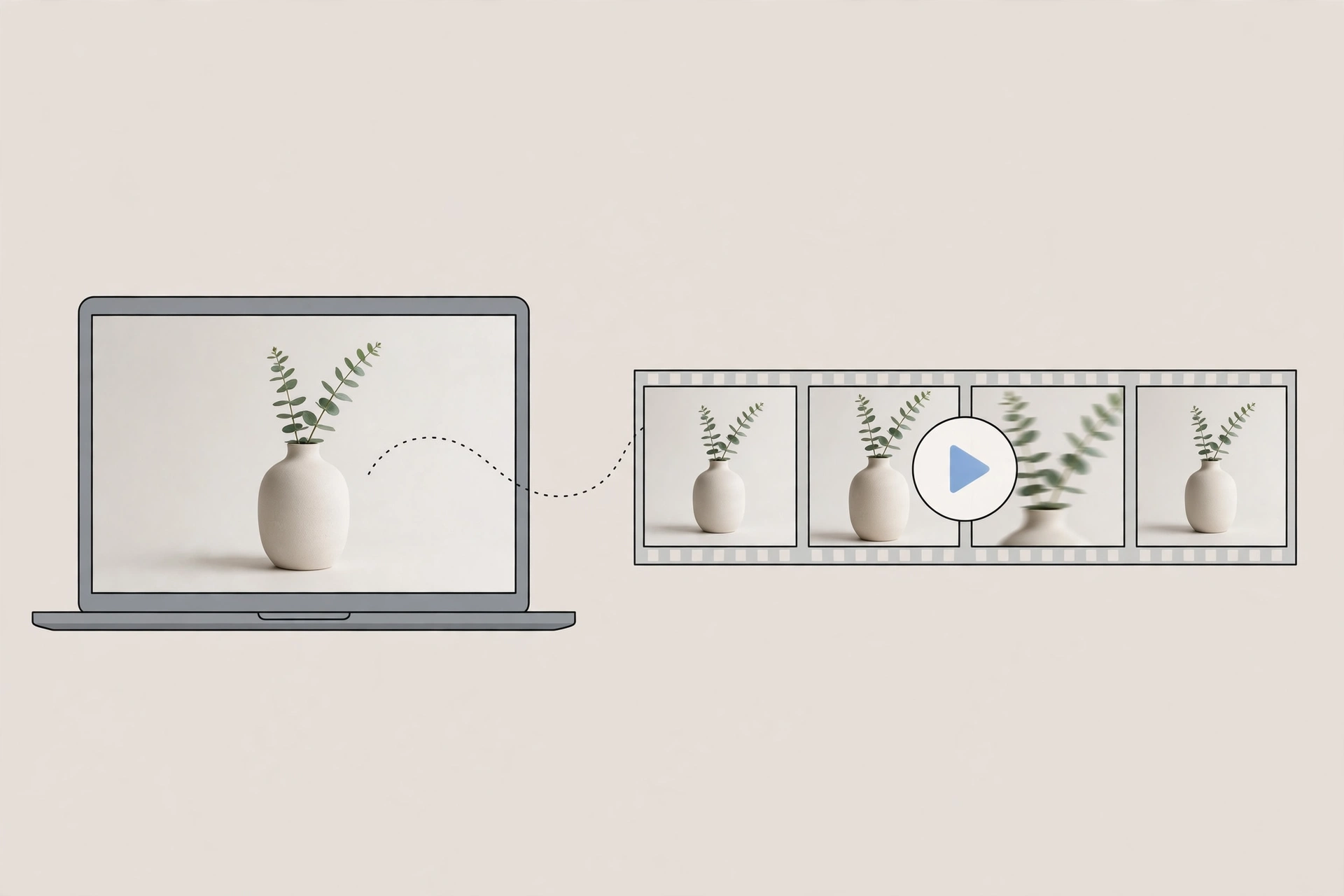


Learning how to edit product photos with ai is the fastest way for a small seller to get studio-looking listings without hiring a photographer. In 2026, AI tools can remove a background in seconds, generate a lifestyle scene around your product, fix a dull photo, and resize it for every marketplace, most of it with one click. This guide walks you through a practical seven-step workflow you can repeat for every product, the tools that fit each step, and what each one costs.

Table of Contents
Why AI Editing Matters for Product Photos in 2026
Shoppers decide in about three seconds whether to click a listing, and the photo does almost all of that work. A clean background, accurate colors, and a sharp image signal a trustworthy seller, while a cluttered kitchen-table snapshot does the opposite. Amazon, Etsy, and Shopify all reward listings with clear, high-resolution images, and some even require a pure white background for the main photo.
Until recently, that standard meant a lightbox, a DSLR, and hours in Photoshop. AI changed the math: background removal that once took ten minutes of masking now takes one click, generative fill can extend a cropped photo or erase a stray object, and upscaling can rescue a soft phone photo. A solo seller with a phone can now produce images that look like they came from a studio.
What You Need Before You Start
AI is powerful, but it cannot rescue a truly bad photo. Start with a decent original: shoot near a window in soft daylight, use a plain white poster board as a backdrop, and keep the product in sharp focus. Wipe the lens, turn off the flash, and take several angles, including a close-up of details buyers care about, such as fabric texture or stitching.
Next, decide where each photo will live, because every marketplace has its own rules. Amazon wants a pure white background and at least 1,000 pixels on the longest side so zoom works, while Etsy prefers a 2000 x 2000 pixel square. Knowing the target size before you edit saves you from redoing work later.
How to Edit Product Photos with AI: The 7-Step Workflow
Follow these seven steps in order for every product. Once you have done it twice, the whole process takes under ten minutes per item.
Step 1: Shoot it right
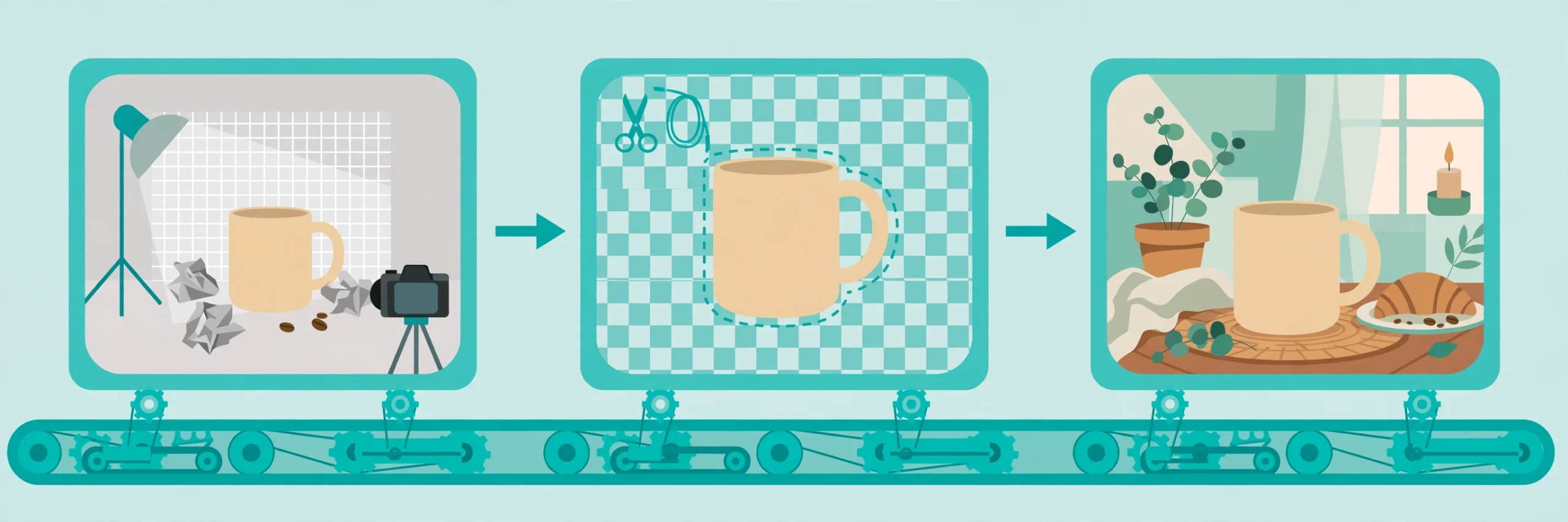
Good editing starts before you open any app. Place the product on a white surface near a large window, with light coming from the side. Take a straight-on hero shot, a 45-degree angle, a back view, and a close-up of the most important detail. Shoot slightly wider than you need: AI expand tools can fill in missing edges, but they cannot invent a part of the product you never photographed.
Step 2: Remove the background
Upload your hero shot to a background remover. PhotoRoom is the best fit for sellers here: it cuts out the product in one click, adds a realistic shadow, and batch-processes a whole catalog. The paid Pro plan costs $12.99 per month, or $7.50 per month billed yearly. One warning: remove.bg is shutting down its standalone website on 1 December 2026, with background removal moving to Canva, so do not buy credits you cannot use before that date. Its subscriptions start at $9 per month for 40 credits.
Check the edges after every removal. AI struggles with fur, hair, transparent packaging, and thin straps, so zoom in to 100 percent and look for halos or missing slivers. If the cutout is rough, try a different tool: PhotoRoom, Photoshop, and Luminar Neo use different cutout engines, and one usually handles a tricky edge better.
Step 3: Stage the scene with an AI background
Amazon requires a white background, but lifestyle shots sell the product everywhere else. PhotoRoom’s AI backgrounds can place a candle on a wooden table or a handbag on a marble counter, generated around your real product photo. Keep the scene believable: lighting, shadow, and scale must match the product, or the image looks fake and hurts trust.
Generate two or three options and pick the most natural one, keeping the product the brightest, sharpest, and largest element in the frame. For a deeper comparison, see our roundup of the best AI photo editors and our PhotoRoom review.
Step 4: Fill, expand, and fix with generative fill
Sometimes the framing is wrong: the product sits too close to the edge, a finger is in the frame, or you need a wider banner crop. This is where Adobe Photoshop with Firefly earns its price. Select the area, type a short prompt such as “extend the wooden table,” and Photoshop generates the missing pixels. Generative Fill is still the most controllable option, because layers and masks limit the AI to exactly the region you choose.
Photoshop costs $22.99 per month as a single app, or $19.99 per month on the Photography plan, which also includes Lightroom and 1TB of storage. Note that the single-app plan includes only 25 generative credits per month versus 1,000 on the Photography plan, so heavy generative use pushes you toward the bundle. Read our full Photoshop review for the complete pricing breakdown.
Step 5: Enhance, denoise, and upscale
Phone photos in dim light often come out soft or grainy, and marketplace zoom exposes every flaw. Topaz Photo is the specialist for this step: its AI models sharpen soft images, remove high-ISO noise, recover faces in lifestyle shots, and upscale small images to print resolution. Run it as the last quality pass before export, so you enhance the final composition rather than pixels you will crop away.
Topaz changed its pricing in 2025, so ignore older reviews quoting a $199 one-time license. As of November 2026, Topaz Photo is subscription-only: from $21 per month on an annual plan in the first year ($25 list price), or $39 per month with no commitment. It is the most expensive tool in this workflow, so trial it on your hardest photos first. Our Topaz Photo AI review covers the full feature set.
Step 6: Retouch people and lifestyle shots
If your listings include models or lifestyle scenes, Evoto is built for that job. It retouches skin, evens out tones, and batch-processes hundreds of portraits with consistent presets, exactly what a clothing or jewelry seller needs for model shots. Evoto charges per export rather than per month: the Starter plan is $89 per year for 800 credits, with most exports costing one credit, and pay-as-you-go packs start at $49 for 200 credits. New accounts get 50 free credits to test it.
Be honest about what Evoto is not: a portrait retoucher first, not a general product editor. Do not use it to reshape a product or smooth away real defects, because that misleads buyers and invites returns. Retouch the model, not the merchandise. See our Evoto review for how its credit system works.
Step 7: Export for each marketplace
Export a master file first, then create marketplace copies. Save the master as a high-quality PNG or TIFF at full resolution, then export JPEGs sized for each channel: at least 2000 x 2000 pixels for Etsy, 2000 pixels on the longest side for Amazon, and 2048 x 2048 for Shopify. Keep file names descriptive, such as “leather-tote-brown-front.jpg,” because marketplaces and Google both read them.
Finally, check the exported image on your phone, not just your monitor. Most buyers shop on mobile, and a photo that looks great on a large screen can look dark or cramped on a small one. If the product is hard to identify at thumbnail size, crop tighter or brighten it slightly.
Tools and Prices at a Glance
| Tool | Starting price | Best for in this workflow |
|---|---|---|
| PhotoRoom | Free; Pro from $12.99/mo ($7.50/mo billed yearly) | Background removal, AI backgrounds, batch editing |
| Adobe Photoshop | From $22.99/mo; Photography plan $19.99/mo | Generative fill, precise retouching, compositing |
| Topaz Photo | From $21/mo annual (first year); $39/mo flexible | Denoise, sharpen, upscale, face recovery |
| Evoto | From $89/yr (800 credits); pay-as-you-go from $49 | Portrait and model retouching in bulk |
| Pixlr | Free; Plus from $2.49/mo ($1.99/mo billed yearly) | Budget editing, quick fixes, browser-based work |
| remove.bg | From $9/mo (40 credits) | One-click cutouts — note the 1 Dec 2026 shutdown |
Prices verified on official pricing pages, November 2026 — confirm the live price before you subscribe.
Common Mistakes to Avoid
The biggest mistake is over-editing. AI makes it easy to push saturation, smoothness, and sharpness too far, until the product looks nothing like what arrives in the mail. That gap is the fastest route to returns and bad reviews. Edit until the photo matches the real product in normal daylight, then stop.
The second mistake is inconsistency. If one listing has a white background, the next a beach scene, and the third a dark backdrop, your store looks disorganized and buyers trust it less. Pick one background style for main images and one for lifestyle shots, and reuse them. Batch tools such as PhotoRoom and Evoto exist for this: process fifty photos with the same settings instead of editing each one by hand.
The third mistake is ignoring free tier limits. PhotoRoom’s free plan is for personal use only, not commercial listings, and Pixlr’s free plan caps AI credits and file sizes. If you are selling, budget for at least one paid plan: at $2.49 per month, Pixlr Plus is the cheapest honest starting point, with an ad-free editor and 80 AI credits a month.

How to Edit Product Photos with AI: FAQ
Do I need Photoshop to edit product photos with AI?
No. Most sellers can do the entire workflow with PhotoRoom for backgrounds and staging, plus Pixlr for quick fixes, for under $15 a month combined. Photoshop is worth it only when you need precise control, such as generative fill on a specific region or print-quality compositing.
Will marketplaces penalize AI-edited photos?
No, as long as the image accurately shows the product. Marketplaces care about accuracy, resolution, and background rules, not which tool you used. What gets listings in trouble is misleading editing: changing colors, removing defects, or showing features the product does not have.
How long does AI product photo editing take per item?
About five to ten minutes per product, including shooting. Batch tools cut that further: PhotoRoom can remove backgrounds from dozens of images at once, and Evoto can retouch a full model shoot with one preset.
Verdict
Mastering how to edit product photos with ai is not about owning the most expensive tool. It is about a repeatable workflow: shoot clean originals, remove the background, stage a believable scene, fix framing with generative fill, enhance quality, and export at the right size for each marketplace. Start with PhotoRoom Pro and Pixlr Plus, add Photoshop when you need precision, and bring in Topaz Photo only when image quality is your bottleneck.