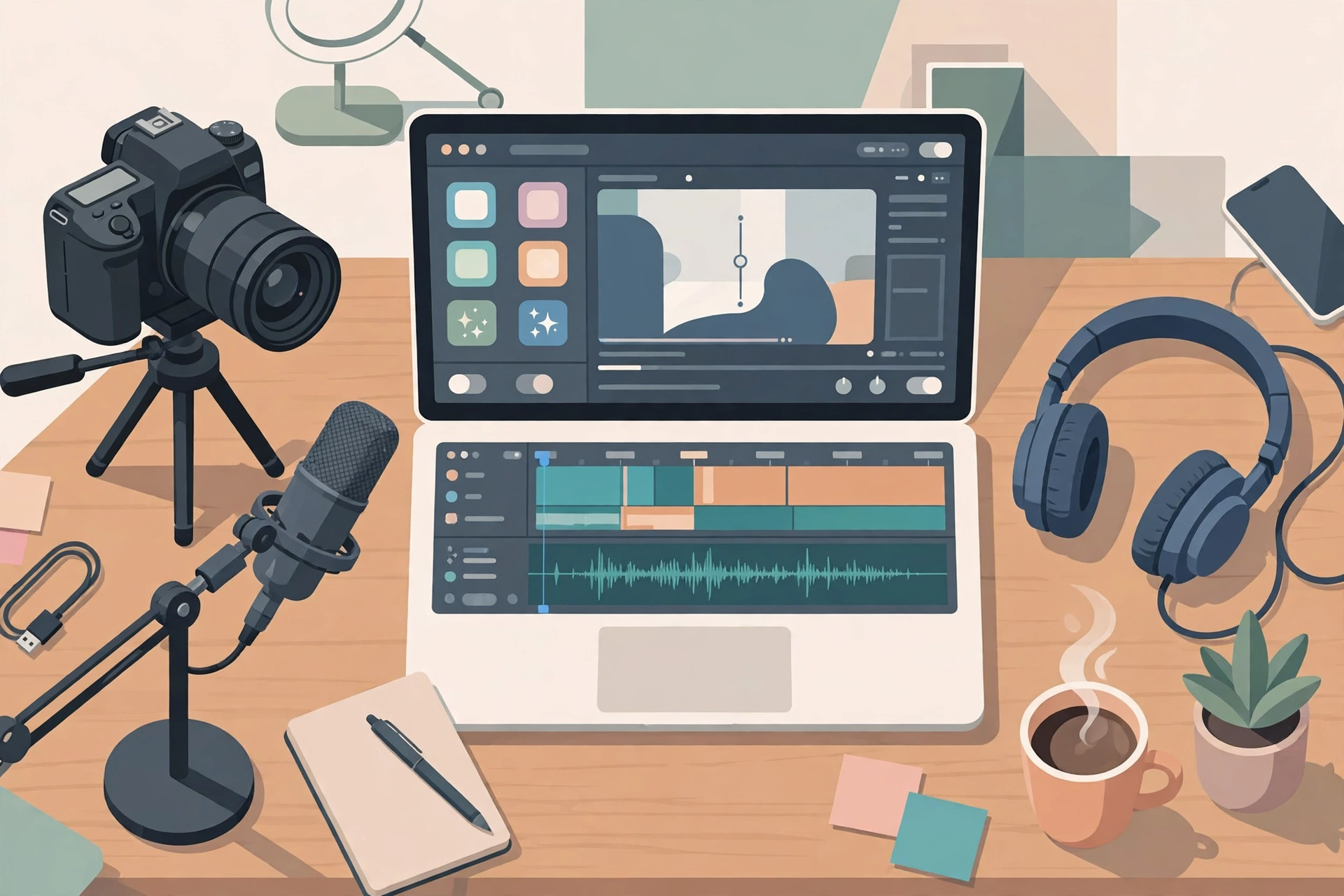

Learning how to turn one podcast episode into 10 TikTok clips with AI is the highest-leverage workflow a podcaster can build: one hour of recording becomes a week of short-form content, and the clips do the job the full episode cannot — they find new listeners who have never heard of your show. A single episode contains ten or more moments worth clipping: the hot take, the story, the answer to a question your audience keeps asking. Doing that by hand means rewatching the episode, cutting ten clips, reframing each one to vertical, and captioning them one by one — a full afternoon. The AI workflow below does the finding, cutting, and captioning for you, and it takes about an hour from finished episode to ten scheduled clips.
Every price in this guide was checked against vendor pricing pages and independent pricing comparisons in November 2026. Clipping tools price by credits, and one credit usually equals one minute of source video, so budget by episode length, not by clip count. Confirm the current price on the vendor’s site before you subscribe.
Table of Contents
What you need before you start
You need three things: the finished episode as a video file (recorded with video, not audio-only — TikTok clips need a face on screen), one AI clipping tool, and a TikTok account to publish to. That is the whole system. If you already record on Riverside or edit in Descript, you may not need a separate clipping tool at all — both have clipping built in, and this guide covers both paths. A 60-minute episode costs about 60 credits on most clipping tools, so a weekly hour-long show needs roughly 240 to 300 source minutes a month; pick the plan by that number, not by the number of clips you want.
Step 1: Record or import the episode as video
Clips start with a video recording. If you record remote guests, Riverside records each guest on a separate track in up to 4K video, which gives the clipping tool clean footage to work with and lets you reframe the active speaker later. If you edit the episode yourself, Descript imports audio or video and lets you edit by editing the transcript — delete a sentence in the text and it disappears from the recording. Either way, export the finished episode as a single video file. If your show is audio-only today, add a camera next episode: a static talking-head shot is enough, and it is the difference between clips that work on TikTok and clips that do not exist at all.
Step 2: Let AI find the moments
Upload the finished episode to your clipping tool — Opus Clip, Vizard, or Quso — and let it score and transcribe the whole recording, then propose ten to forty clips ranked by viral potential. This is the step that saves the afternoon: instead of rewatching an hour of footage, you review a shortlist. Opus Clip is the richest toolbox here, with a virality score, viral hooks, motion graphics, and B-roll, at $15 a month for the Starter plan (150 credits) or $29 a month for Pro ($14.50 billed annually, 300 credits). Vizard is the best value per source minute: its Creator plan is $29 a month or $14.50 billed annually for 600 credits, and it edits by transcript, which suits interview podcasts. Quso, formerly Vidyo.ai, is $29 a month for Lite (100 credits) and adds scheduling to the same subscription. Pick ten clips from the shortlist, aiming for variety: one hot take, one story, one practical answer, one funny moment, and one clip that challenges a common belief. A 60-minute episode costs 60 credits on all three tools, so a weekly show burns 240 credits a month — Vizard’s 600-credit Creator plan is the only one of the three that covers it with room to spare.
Step 3: Refine the cut and reframe to vertical
Open each chosen clip and trim the dead air at the start and end — the first two seconds decide whether anyone keeps watching, so the clip should open mid-sentence on the strongest line, not on a greeting. Reframe to 9:16 vertical and centre the active speaker; all three clipping tools do this automatically, and Vizard’s speaker-centring is particularly good for two-person interviews. Add B-roll over the moments where the speaker is just talking to camera for too long — Opus Clip’s B-roll feature does this with one click — and keep each clip between 30 and 90 seconds. Shorter clips finish more often, and a finished clip is a clip TikTok shows to more people.
Step 4: Polish captions and the hook
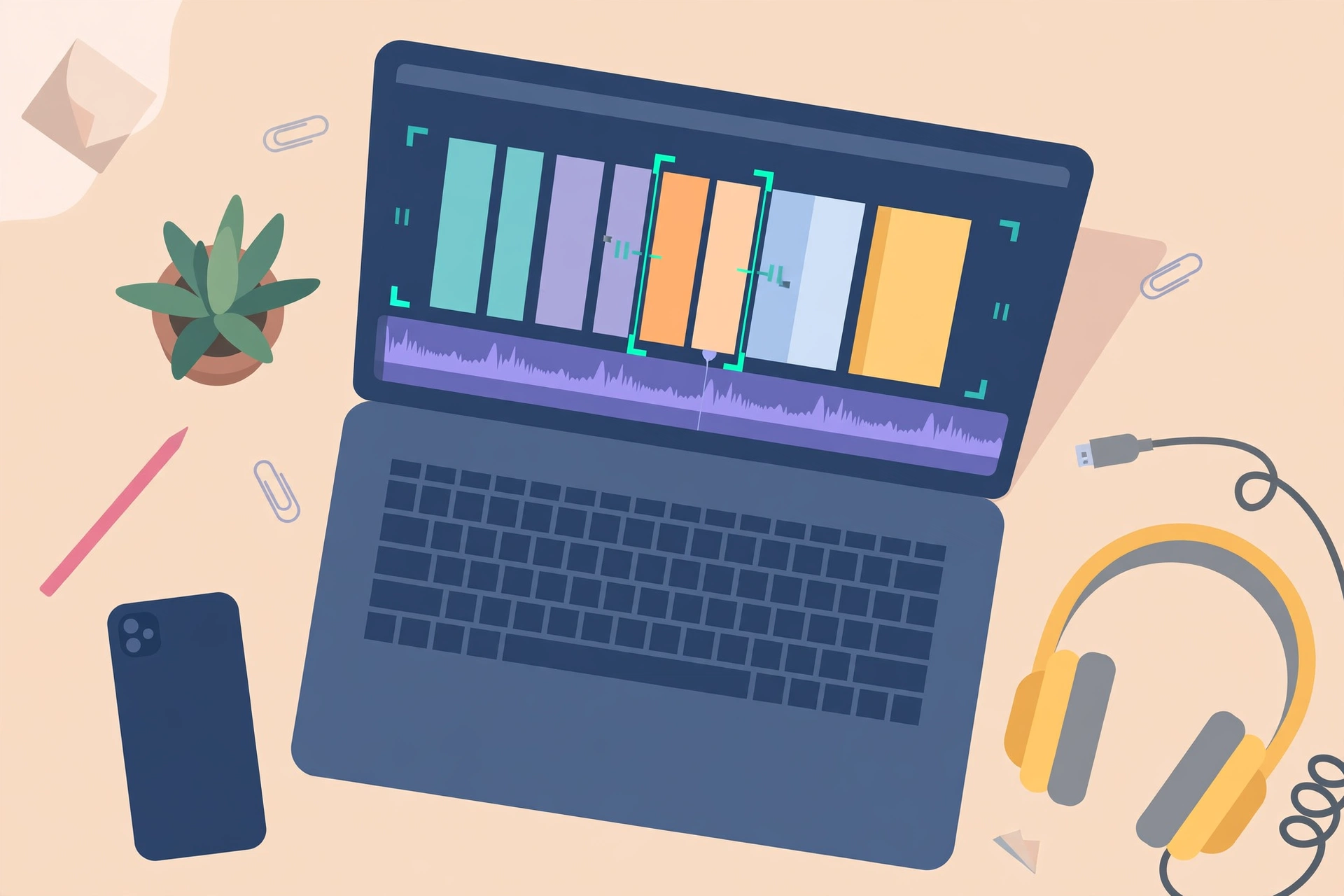
Most people watch TikTok with the sound off first, so captions are not decoration — they are the reason anyone stops scrolling. Submagic is the best tool for this step: animated captions in more than fifty languages, AI hook titles, silence and bad-take removal, and clean audio, from $19 a month for Starter ($12 billed annually, 15 videos a month) or $39 a month for Pro ($23 billed annually, 40 videos). Its captions are the closest to what native TikTok creators use, and there is no watermark even on Starter. If you already use Opus Clip or Vizard, their built-in captions are good enough to skip this step; add Submagic only when you want the clips to look unmistakably native to TikTok. Write the on-screen hook as a promise, not a label: “The mistake that kills every podcast launch” will outperform “Episode 42 — podcasting tips” every time.
Step 5: Schedule and publish to TikTok
Publish from inside your clipping tool or export and post natively. Quso is the only tool here where clipping, scheduling, and a content planner live in one subscription, publishing to seven platforms from the same dashboard. Opus Clip Pro and Vizard Creator both include a scheduler and content calendar. Or export the finished clips and post them natively from the TikTok app, which costs nothing and gives you the full caption, hashtag, and sound controls. Either way, space the ten clips across the week — two a day for five days, or one a day for ten days — instead of dumping them all at once. Post the strongest clip first: the first clip’s performance tells TikTok whether your account is worth pushing, and a strong opener lifts the clips that follow.
Step 6: Repeat weekly, and let the numbers pick your topics
The workflow only pays off as a habit. After the first week, look at which clips finished, which ones got saves and shares, and which topics pulled comments — then record your next episode leaning into the topics that won. A clip that earns saves is a future episode topic. The cheapest complete stack for a weekly show is Riverside Pro ($24 a month billed annually) to record, Vizard Creator ($14.50 a month billed annually) to clip, and Submagic Starter ($12 a month billed annually) to polish — about $50 a month all-in, or about $26.50 a month if you already record elsewhere and skip Riverside. The simplest one-tool path is Quso Lite at $29 a month for clipping and scheduling in one place. The best-quality path is Descript Creator ($24 a month billed annually) for editing, Opus Clip Pro ($14.50 a month billed annually) for virality-scored clips, and Submagic for captions.
Common mistakes
The most common mistake is clipping the intro. Nobody on TikTok cares about your theme music or your guest’s biography — open on the strongest sentence. The second is posting horizontal video with black bars: a 16:9 clip in a vertical feed looks like a mistake and gets swiped past in a second. The third is choosing the wrong plan: a Starter plan with 100 or 150 credits does not cover a weekly hour-long show, so you will hit the credit wall in week two — budget 240 to 300 source minutes a month before you subscribe. And the fourth is clipping without captions. Sound-off viewers are the majority, and an uncaptioned clip is a clip half your audience cannot follow.
How to turn one podcast episode into 10 TikTok clips with AI: the tools at a glance
| Tool | Role in this workflow | Price (annual billing) |
|---|---|---|
| Opus Clip | Virality-scored clipping | $14.50/mo (Pro, 300 credits) |
| Vizard | Best-value clipping | $14.50/mo (Creator, 600 credits) |
| Quso | Clipping + scheduling in one | $29/mo (Lite, 100 credits) |
| Descript | Edit episode + extract clips | $24/mo (Creator) |
| Riverside | Record + Magic Clips | $24/mo (Pro) |
| Submagic | Caption polish | $12/mo (Starter) |
| Kapwing | Browser all-rounder | $16/mo (Pro) |
If you want a broader repurposing system beyond TikTok, our guide on how to repurpose one video into 10 social posts with AI covers the same workflow across every platform, and our roundup of the best AI presentation makers covers the video-adjacent tools for turning talks into decks.
FAQ
How many TikTok clips can I really get from one podcast episode?
Ten is a realistic, repeatable number from a 60-minute episode: the AI tools above propose ten to forty clips per hour of footage, and ten strong ones beat twenty mediocre ones. Shorter episodes yield fewer; a 30-minute show usually gives five to eight good clips.
Do I need to record video, or can I clip an audio-only podcast?
You need video. TikTok clips need a face on screen — a static talking-head shot is enough, and Riverside or a simple camera setup gives you that. Audio-only clips with a waveform graphic perform poorly.
Which clipping tool is cheapest for a weekly podcast?
Vizard Creator at $14.50 a month billed annually, with 600 source minutes — the only plan here that covers a weekly 60-minute episode with room to spare. Opus Clip Pro costs the same but gives 300 credits, which covers about five hour-long episodes a month.
Will TikTok penalize clips made with AI?
No — TikTok cares whether viewers watch, not how the clip was cut. The clips that fail are the ones with slow openings, no captions, or horizontal framing, and those are editing choices, not AI choices.
Verdict
Knowing how to turn one podcast episode into 10 TikTok clips with AI is less about the tools than about the habit: record with video, let AI find the moments, trim to the strongest sentence, caption everything, and post the best clip first. Start with Vizard Creator if you want the cheapest plan that covers a weekly show, Quso Lite if you want clipping and scheduling in one subscription, or Descript plus Opus Clip if you want the best editing and the best clip scoring together. One hour of recording, one hour of clipping, ten clips, a week of content — and every clip is a new listener who never would have found the full episode.